

Day 21 - Student Dashboard
- Suzie Ji

- Apr 7, 2021
- 1 min read
Updated: Apr 14, 2021

Student Dashboard Report
Step 1:
Session Variables
In Student Dashboard, in order to make each student see their own course content, Do session variables are used in Applied Filters.

Step2:
Applied Filters (each student can only see their own course content, admin can't see it)

Applied Filters1: StudentCourseId (Incorta admin can see all schools, students in each school can only see their own course content, but in this way, the admin of each school cannot see the course content of all students in their own school and will do it later) What to do later: The admin of each school can only see the content of the courses of all students in their own school.
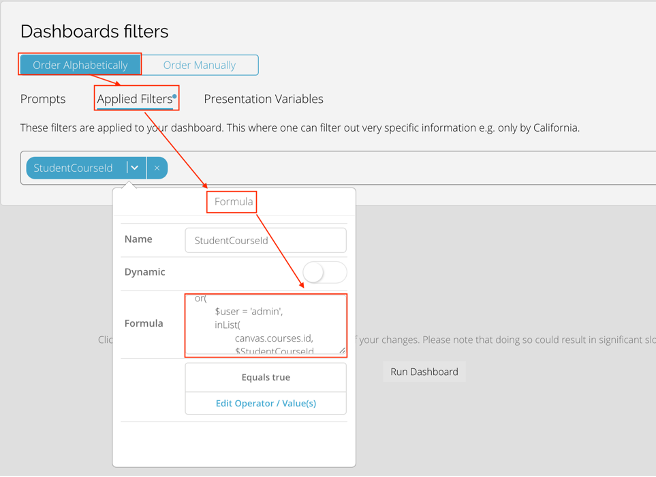
or(
 $user = 'admin',
 inList(
 canvas.courses.id,
 $StudentCourseId
 )
)
Applied Filters2: StudentEmail
First, add a formula column in the user table: User_Email


or(
 $user = 'admin',
 canvas.User_Student.User_Email = $user
)
Step3:
Prompts Filter
Availability Status (only displays the current semester's classes and ongoing homework)

Current Term


Course Section State

Student Dashboard Report
There are two tabs in the Student Dashboard, Courses, and Assignments.
Student Courses and Scores
On the Courses tab, students can see their current scores for each course in the current semester.

Student Assignments
In the Assignments tab, students can see the score, due date, and submission status of each assignment for each course.


Comments