

Day 6 - Export data from PostgreSQL(Part 2)
- Suzie Ji

- Feb 4, 2021
- 2 min read
Updated: Apr 14, 2021

Methods 3:
Successful
Step 1:
Find username and password.
kiki@School:~/canvas$ docker exec -it canvas-lms_web_1 /bin/bash

Enter the docker, and then enter the PostgreSQL virtual machine.

Find the config file, whether there are a username and password.
docker@eeb3526ec12c:/usr/src/app$ cd config
$ cat database.yml
Find,'CANVAS_DATABASE_USERNAME', 'postgres'
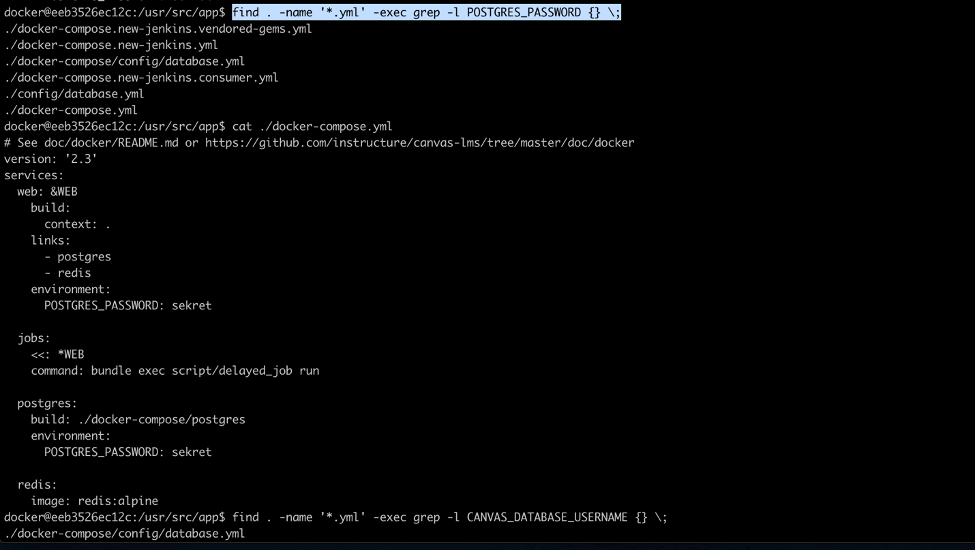
$ find . -name '*.yml' -exec grep -l POSTGRES_PASSWORD {} \;
Find the file containing POSTGRES_PASSWORD.
Find docker-compose.yml
docker@eeb3526ec12c:/usr/src/app$ cat ./docker-compose.yml
Take a look at this file and find
POSTGRES_PASSWORD: secret
Step 2:
Enter the PostgreSQL virtual machine and find the database.

$ docker exec -it <image name> /bin/bash
kiki@School:~/canvas$ docker exec -it canvas-lms_postgres_1 /bin/bash

$ psql -d <mydb> -U <myuser>
$ \l
Find all databases
$ psql -d canvas_development -U postgres
There are many databases in Postgres. Change -d database name to canvas_development
Now in the database named canvas_development, Postgres language can be used.
$ \dt
Find all schemas.
Step 3:
Take the data out. PostgreSQL Backup.
Take the canvas_development database from the PostgreSQL virtual machine to the docker, and take the data from the azure docker. The backup is complete.
Now in the PostgreSQL virtual machine.


$ pg_dump -U <myuser> -F t <mydb> > <file name>
root@df8e74a3ecb2:/backup# pg_dump -U postgres -F t canvas_development > canvas_backup.tar
root@df8e74a3ecb2:/backup# pg_dump -U postgres -F p canvas_development > canvas_backup.sql
Now the database of canvas_development has been backed up to the progresql virtual machine. The next step is to take it out of the PostgreSQL virtual machine to docker.
Step 4:
Take the backed-up files from the PostgreSQL virtual machine to docker.

Exit from the PostgreSQL virtual machine and do the next backup in
kiki@School:~/canvas

kiki@School:~/canvas$ docker cp canvas-lms_postgres_1:/<path>/<file name> ./
kiki@School:~/canvas$ docker cp canvas-lms_postgres_1:/backup/canvas_backup.sql ./
Now the backup files have been successfully taken out from the PostgreSQL virtual machine to docker. Next, get the data from azure docker.
Step 5:
Take the data from azure docker. The entire backup is complete. The next stage is to install PostgreSQL in Incorta first, and then put the file into Incorta.

From Azure kiki@School Exit, return to the machine, outside, get the data inside.
Dylans-MacBook-Pro:.ssh suxinji$ scp -i kiki.pem kiki@52.249.188.121:/home/kiki/canvas/canvas_backup.* ~/Downloads/
Now the data has been taken out to this machine. The backup is complete.


Comments