

Day 7 - Put PostgreSQL data into Incorta
- Suzie Ji

- Feb 8, 2021
- 1 min read
Updated: Apr 14, 2021

First, install PostgreSQL in Incorta, and then put PostgreSQL data into Incorta.
Install PostgreSQL 12 on Amazon Linux 2
$ scp -i remove.key ~/Downloads/canvas_backup.* incorta@<ip adress>:/home/incorta/canvas
$ scp -i remove.key ~/Downloads/canvas_backup.* incorta@54.213.155.243:/home/incorta/canvas
Now the SQL data has been put into the Incorta machine.
Create Database:
$ sudo -u postgres psql
$ CREATE DATABASE canvas_development;
$ \c canvas_development 
$ sudo -u postgres psql
# This is connected to the inside, similar to the Incorta notebook, sudo su-postgres, this is equivalent to the outside, similar to Incorta.
PostgreSQL backup database
#Put the data file into the canvas_development database of Incorta's progres.

$ sudo -u postgres pg_restore --dbname=<newdvdrental> --verbose <c:\pgbackup\dvdrental.tar>
https://www.postgresqltutorial.com/postgresql-restore-database/
$ sudo -u postgres pg_restore --dbname=canvas_development --verbose /home/incorta/canvas/canvas_backup.tar
It has now been put into Incorta's Postgres database.
The next step is to let Incorta take the data out of the database for the next report.
Create a database user.

$ sudo -u postgres createuser --login --pwprompt <db username>Postgres is the username of Linux, created by install PostgreSQL itself.
Change the owner of the database.
$ ALTER DATABASE <database name> OWNER TO <owner name>;
$ ALTER DATABASE canvas_development OWNER TO canvas;
The current change is the owner of the canvas_development database. The other owner is Postgres.
Change root password for PostgreSql phpPgAdmin(Not required.)

Add the Linux PostgreSQL user so that you can connect to this database in Incorta.The method found is to change the file pg_hba.conf.

$ sudo su – postgres
$ cd /var/lib
$ cd pgsql/12/data
$ vim pg_hba.conf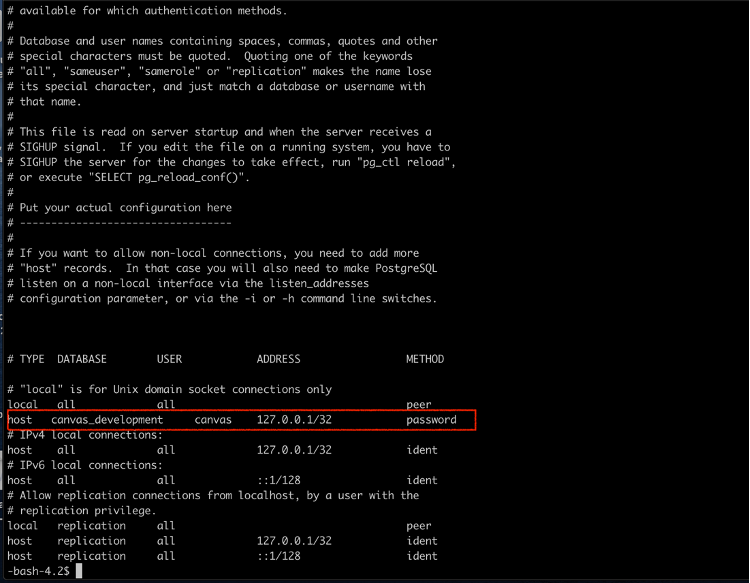
Add this line in pg_hba.conf:
host canvas_development canvas 127.0.0.1/32 password


Comments